Overview
PICO-8 is like an emulator for a video game console that was never made. But, unlike a typical emulator, PICO-8 includes the ability to browse and download games. What's more, is that the PICO-8 environment includes all the tools you need to create and modify games, whether they are ones of your own creation or ones that you downloaded yourself.
Environment
When you first launch PICO-8, you are presented with a command prompt. This is a bit like the prompt computers that ran MS-DOS would boot to back in the 1980's.
Commands
These are some of the commands you can run. Don't run any of these just yet.
- LS - show the files in the current directory
- RUN (or ctrl-r) - run the current cartridge
- SAVE (or ctrl-S) - save the current cartridge
- INSTALL_DEMOS - install a few demo cartridges
- SHUTDWON (or ctrl-q) - quit PICO-8
- REBOOT - restart PICO-8
- SPLORE - explore community created cartridges
Editing a Downloaded Game
As mentioned earlier, any game you run in PICO-8 can also be edited in PICO-8! This gives you super powers. It allows you to customize any aspect of a game you want! Let's take a peek in a cart to learn about the built-in editing tools.
Run a game that looks interesting (or the Jelpi demo, if you don't have
Internet access). Once it is running, hit esc. If it gives you the option to
exit to splore, choose it and hit esc. Otherwise, just hit esc. This
should put you at a prompt. (It is the > at the top of this next
screenshot.)

Now, hit esc to go into the code editor. This shows you all of the code in
the game you were running most recently.
The currently active tool is highlighted in the top right corner of the screen
(() in the example.)
If the game makes use of mulitple code tabs, these will appear in the top left.
The game in the screenshot only has a single code tab (labeled 0).

To see the sprites (which include character and background graphics), click on
the face icon in the top right. It is just to the right of the () icon.
Unless you are editing the same game as me, the contents of this page will look different.
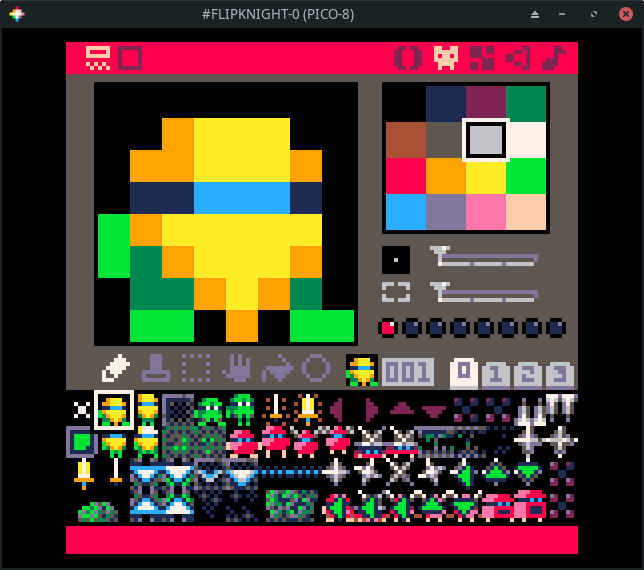
PICO-8 uses a fixed pallete (those are the colors used in the sprites). This pallete is shown in the top right. In the example, a light gray color is selected. The current sprite is shown in the top left. Sprites are 8 pixels wide and 8 pixels tall.
The available sprites are shown in the bottom pane. In this example, sprite
001 is selected.
There are a number of tools just above the bottom pane. These include a pencil, selection, movement, and paint bucket tool (among others).
Zoom levels, sprite pages, and sprite flags are also on this page, but those will be discussed when and where they are used in the tutorials.
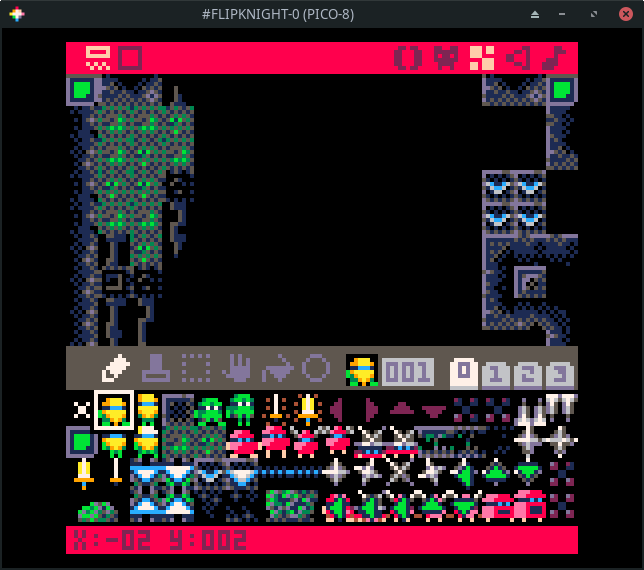
Sprites don't do us much good if they are not placed in a world. Most PICO-8 carts make use of the built-in map memory to display their sprites. The map editor is to the right of the sprite editor. Click on it!
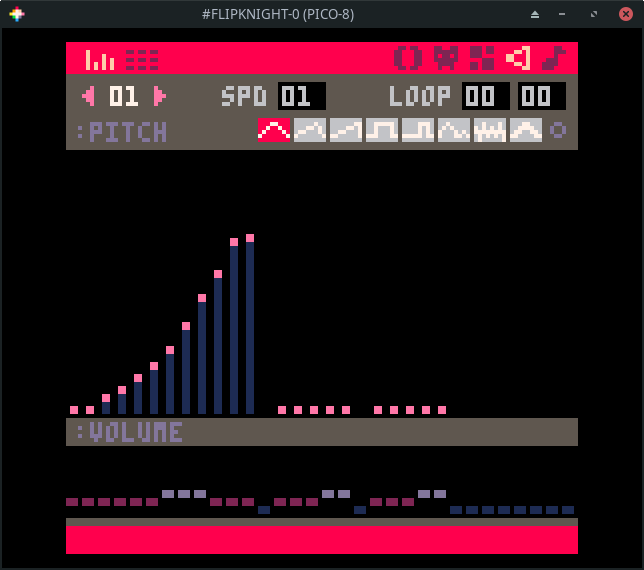
To the right of the map editor is the sound editor. Click on it!
To the right of the sound editor is the music editor. Click on it!
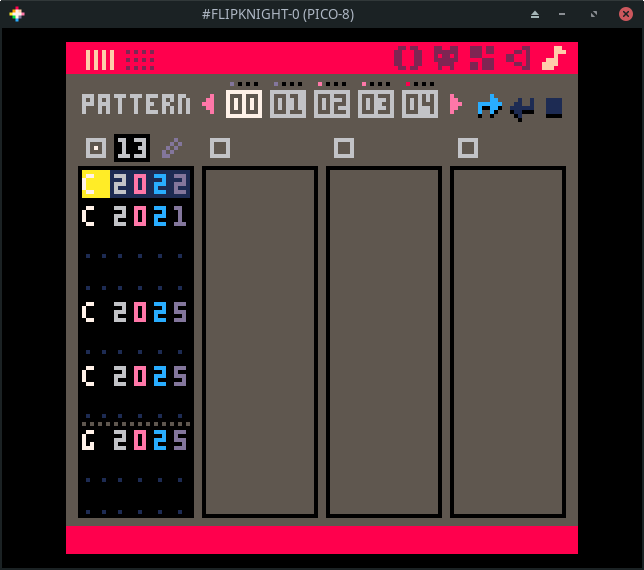
Those are all of the built-in tools. The PICO-8
Manual provides more
details about how to navigate and use the built-in tools. There's also a text
version included in your pico-8 installation! Look for pico-8.txt.
Making modifications to existing games is a great way to become familiar with the tools and to express your own creativity. This is best done with simpler titles as titles that push the limits of the console end up using advanced techniques to cram everything into the limits of the console which makes modifications more difficult than normal.
If you do end up wanting to make changes, hit esc to go to the prompt and
then use save to save the cart under a different name. Then feel free to make
the changes you want. Try them out by pressing ctrl-r or using the run
command. If you decide you don't like your changes, load your previously
saved version. If you like them, save them with ctrl-s or the save command.
Creating Your Own Games
Now that we have explored an exist cart. Let's try making a simple cart.
Get to the prompt and run reboot. This will reset PICO-8.
Hit esc to go the code editor and enter the following.
- shift-L =
L - shift-R =
R - shift-U =
U - shift-D =
D
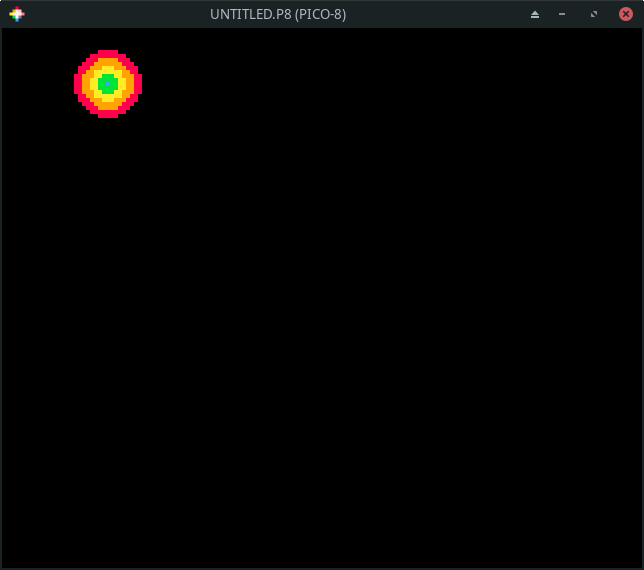
Hit ctrl-r to run it (or use the run command). You should see a
multi-colored circle that you can move around with the arrow keys.
Run save move_circle if you want to save it.