Keys
We are going to add items for our player to interact with in our world. One will be a key they can pick up. The other will be a chest they can open.
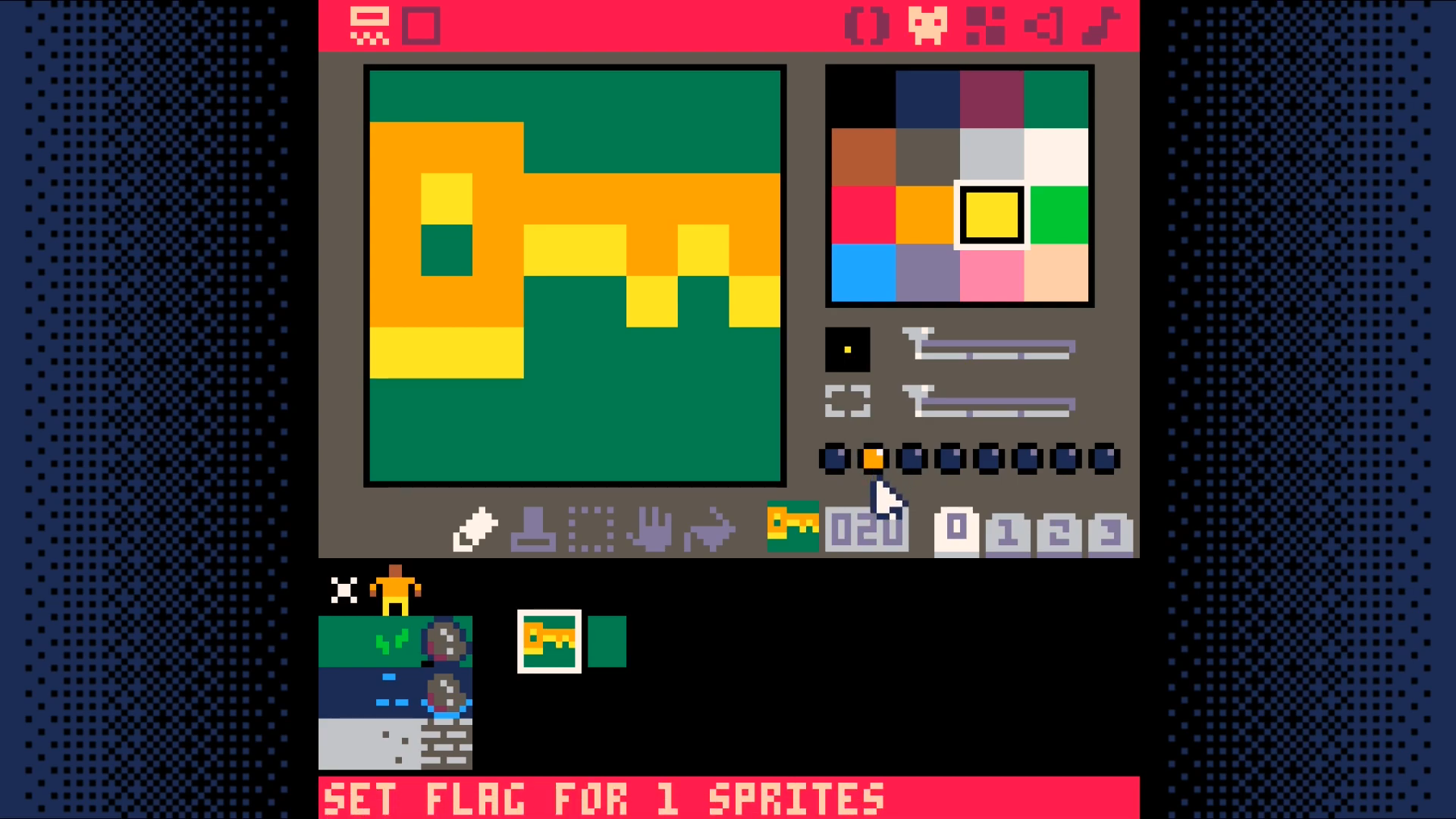
You will need to draw two sprites for each of them.
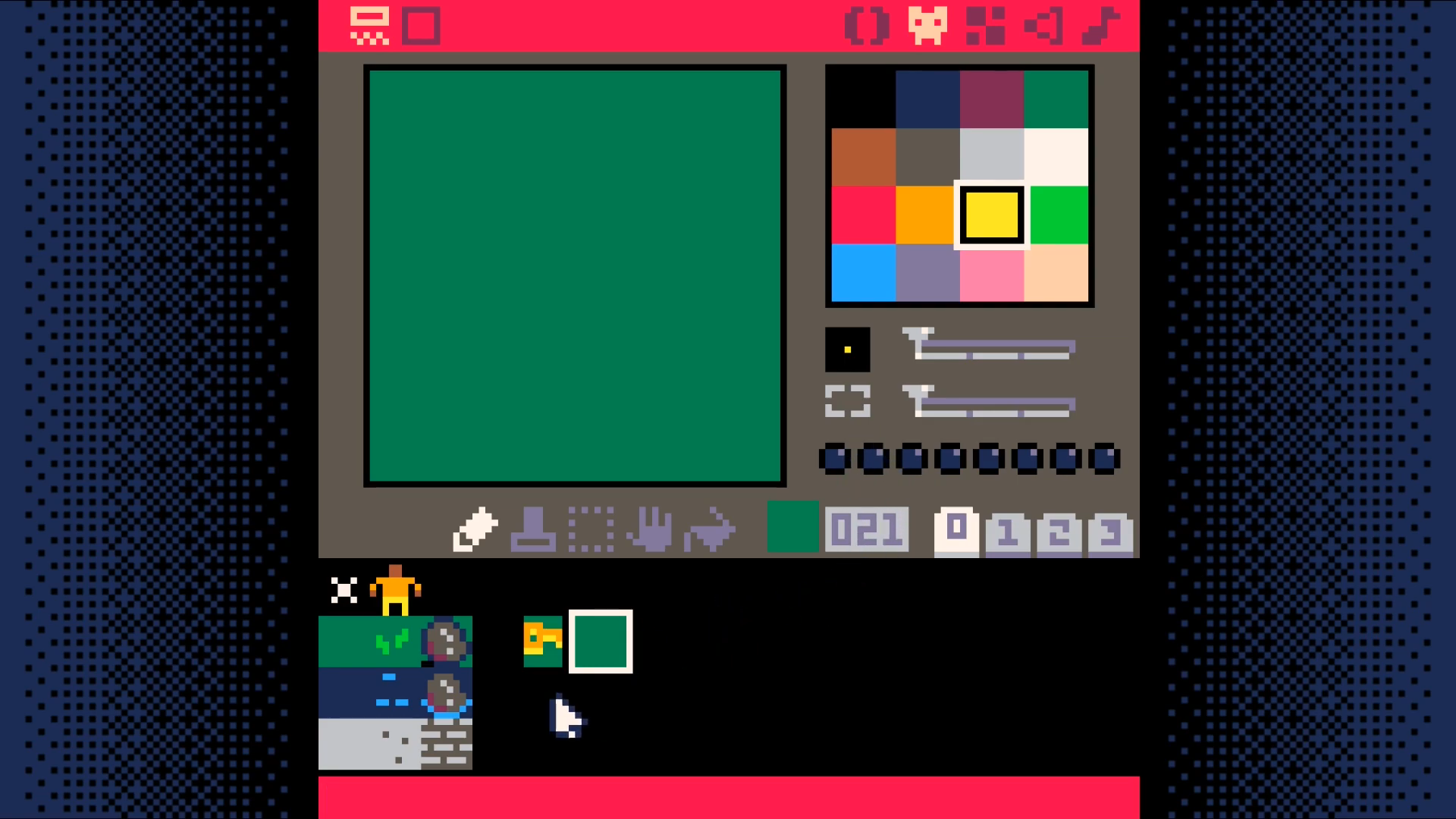
For the key, the first will be what the key looks like when it can be picked up. The second will be what the tile should look like after the key has been picked up. In the example, it looks just like the grass tile.
You may ask, why not just reuse the grass tile? Why draw a duplicate? The reason is that it greatly simplifies the code we have to write to handle picking up keys.
Whenever the player interacts with a key tile in our world, we will simply replace the sprite that received the interaction with the sprite immediately to the right of it in the sprite sheet.
This means that it is very important that the tile without the key be immediately to the right of the tile with the key!
Go ahead a draw the two key sprites now. You will want to set sprite flag 1 on the key (but not the tile without the key). Sprite flag 1 is what we use to determine if the player can interact with a tile.
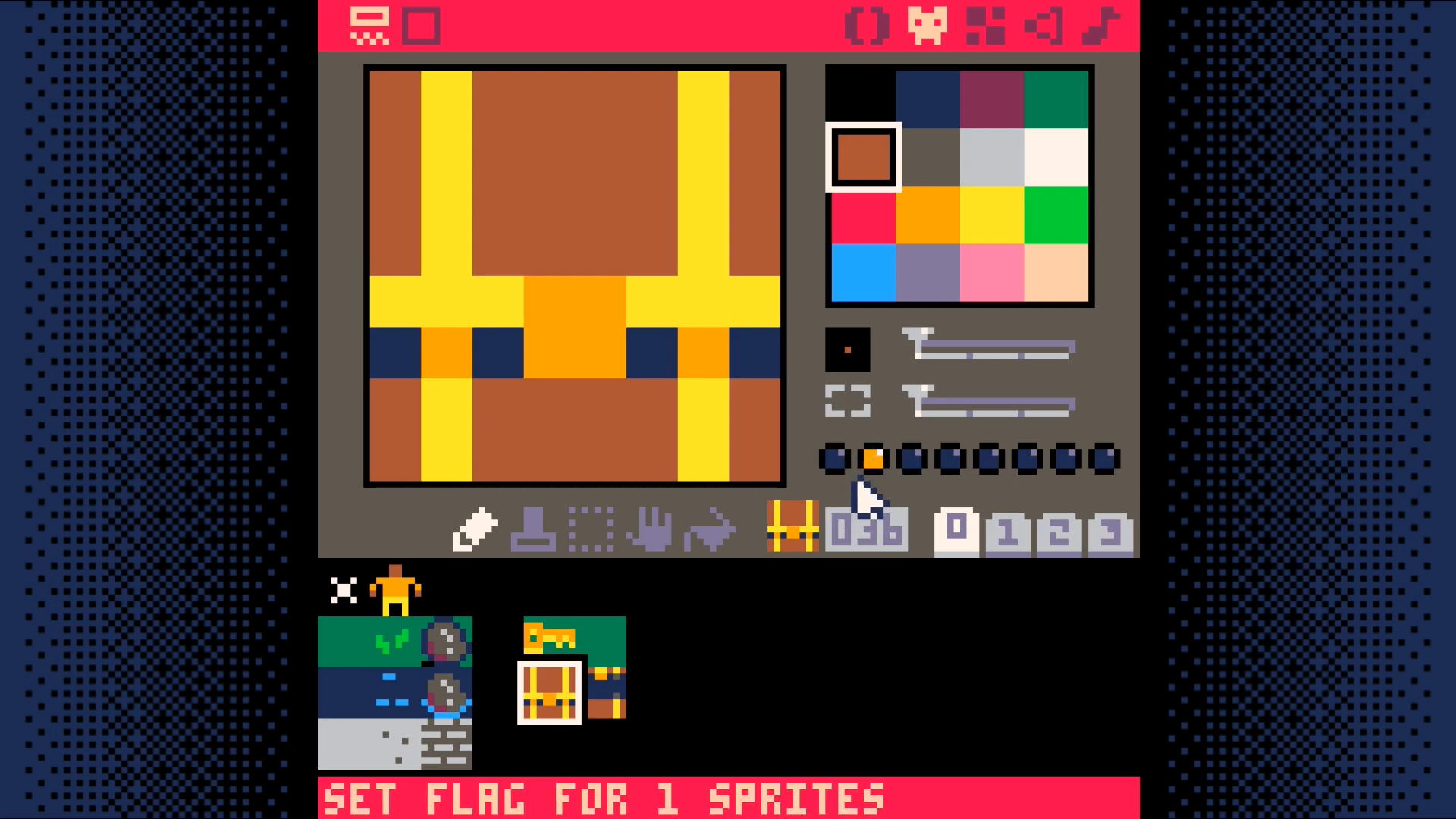
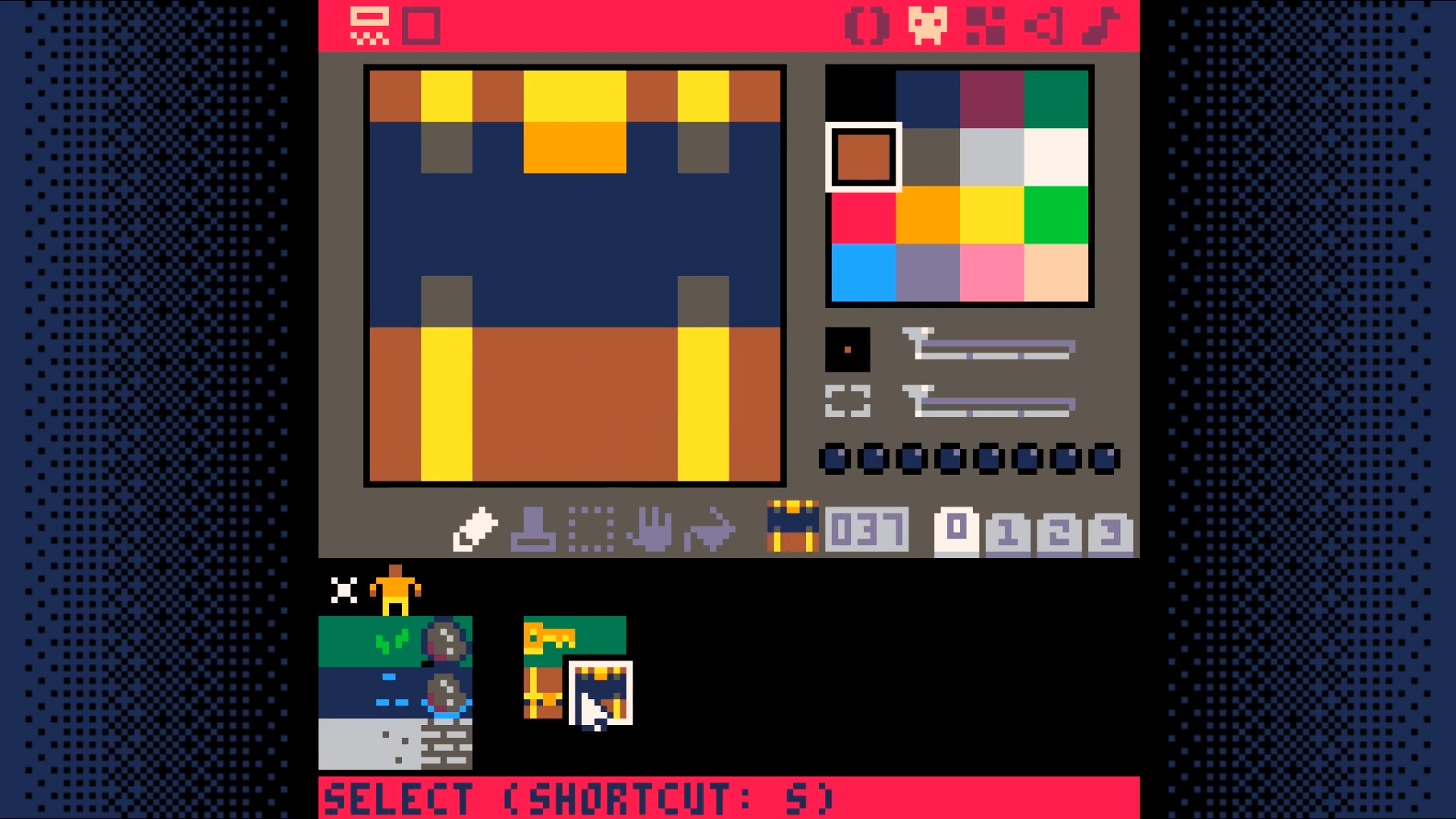
For the chest, we need a sprite showing a closed chest and one showing an open one. The closed chest needs to have sprite flag 1 set on it.
Just as with the key sprites, it is very important that the closed chest sprite be immediately to the right of the open chest sprite.
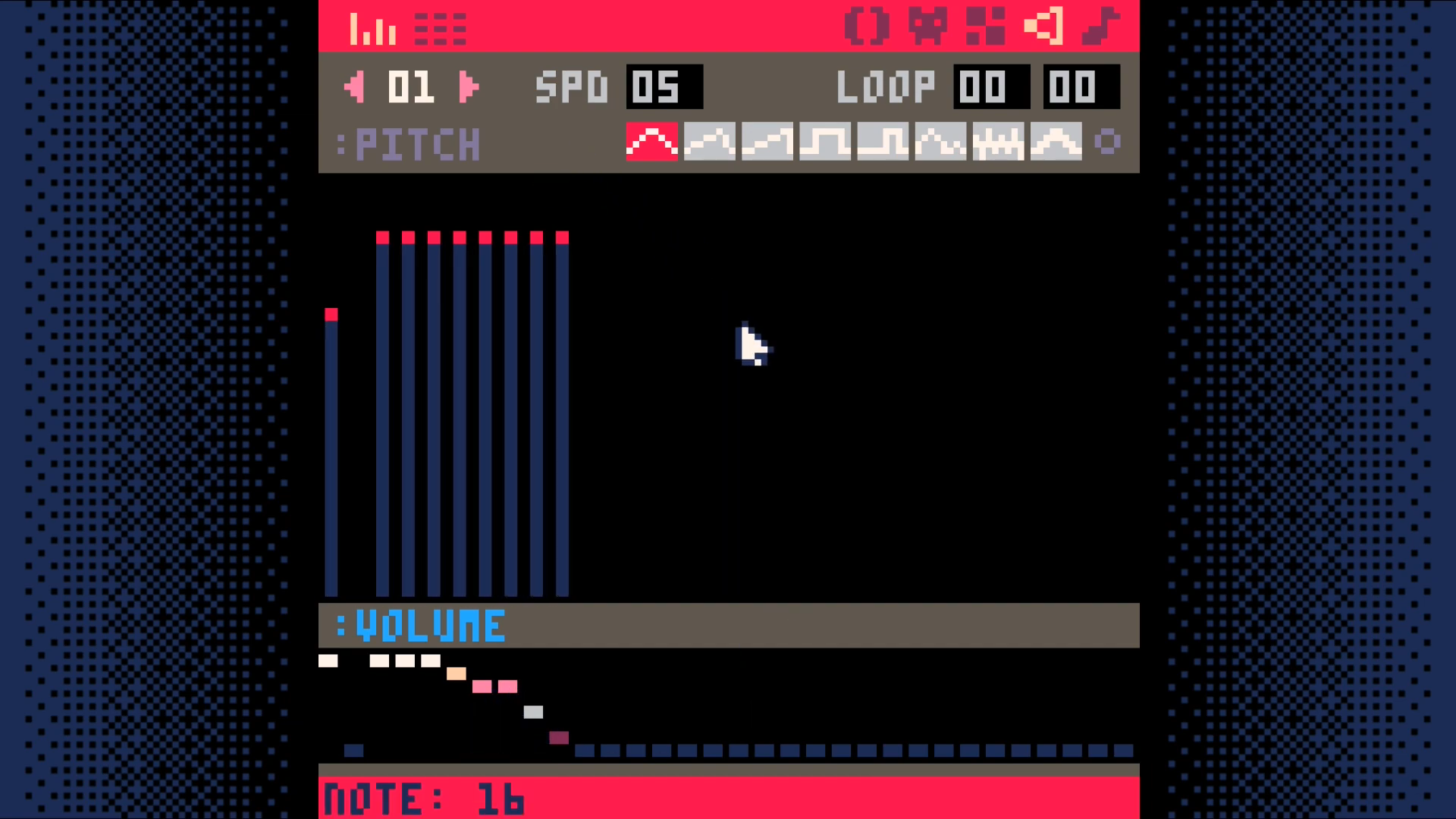
Make a sound effect for the pick-up key sound.
Go to the sound editor. Switch from sound 00 to sound 01. Try replicating
what is shown in the screenshot or feel free to make up your own sound.
Now we need to add the code that allows the player to pick up keys. Interacting with either the key on the ground or the chest will give the player a key.
Add two functions, swap_tile and get_key, to the map code tab (tab 1).
The swap_tile function replaces the current tile with the tile immediately to
the right of it in the sprite sheet. This is why we had to draw the key and
chest variants where we did.
The get_key function increases the count of the keys the player is carrying
by one, swaps the tile to show that the player successfully interacted with the
tile, and plays a sound to give an audible indication of the action.
Just adding these two functions changes nothing in our code. We have to call one of them from somewhere.
Add a function called interact to the player code tab (tab 2).
This function checks to see if the tile is a key tile. If it is, it calls the
get_key function to pick up the key.
Now call this function from the move_player function.
End Result
Save your changes with ctrl+S. Run them with ctrl+R. You should now be able to have your character pick up keys, but you will not be able to see how many keys your character is holding. We will fix that in the next section.
Download